Computah,apply for my master’s.apply for my master’s.book me a flight ticket.fill in a survey.check my emails.
Talk. Point. Delegate. Review.
Big plans. Everyday errands. A voice companion in your Mac’s notch that helps you understand what’s on screen, research your options, and prepare the next step while you keep working.
Apple silicon · macOS 14+ · Bring your own OpenAI API key
Paste your API key into Settings. Usage is billed to your OpenAI account. See example costs.
A little face. A lot of possibility. Tap to say hello.
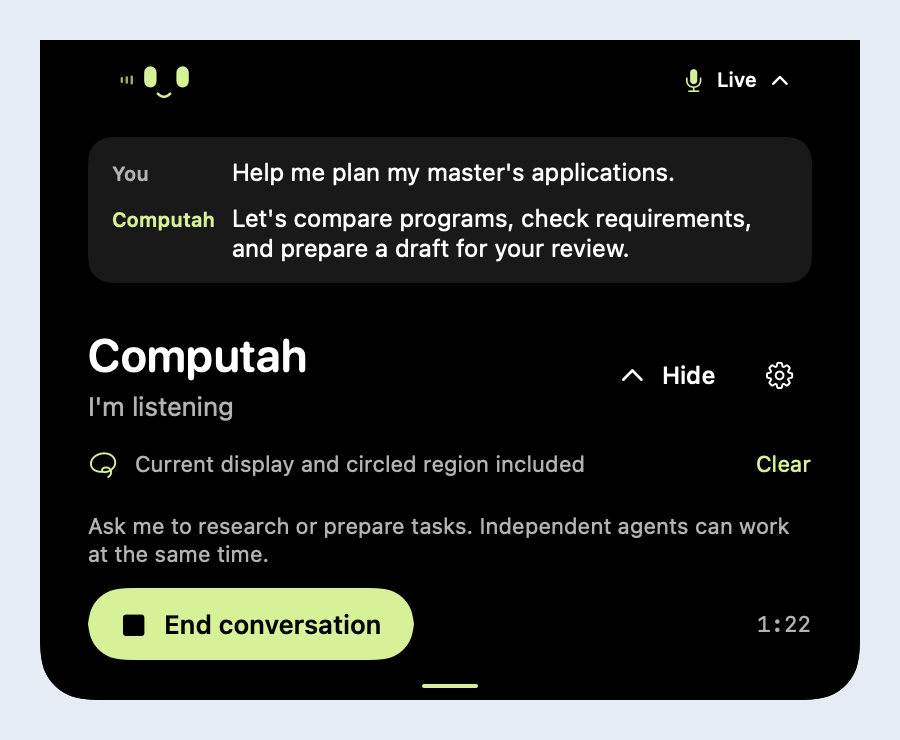
Real native interface. Illustrative conversation.
For the things that take more than one tab.
A trip to plan. A form to finish. Something on screen to make sense of. Give Computah the context, hand off research and preparation, and keep your attention on the decisions that matter to you.
What’s on your list?
Applications
Research requirements, organize your notes, and prepare supported form fields.
Travel plans
Research destinations and compare options before you book.
Surveys & forms
Understand the questions and prepare answers from the details you provide.
Your inbox
Talk through an email visible on your screen and work out what to do next.
Computah's task instructions require explicit confirmation before bookings, sending, and final submissions. It asks through the active voice conversation and returns your answer to the same waiting task; a task-card form is also available. The current YOLO-mode runtime does not enforce that instruction. Computah does not connect directly to your inbox.
Ask. Prepare. Make it yours.
One example: a master’s application, shown through the actual Mac interface.
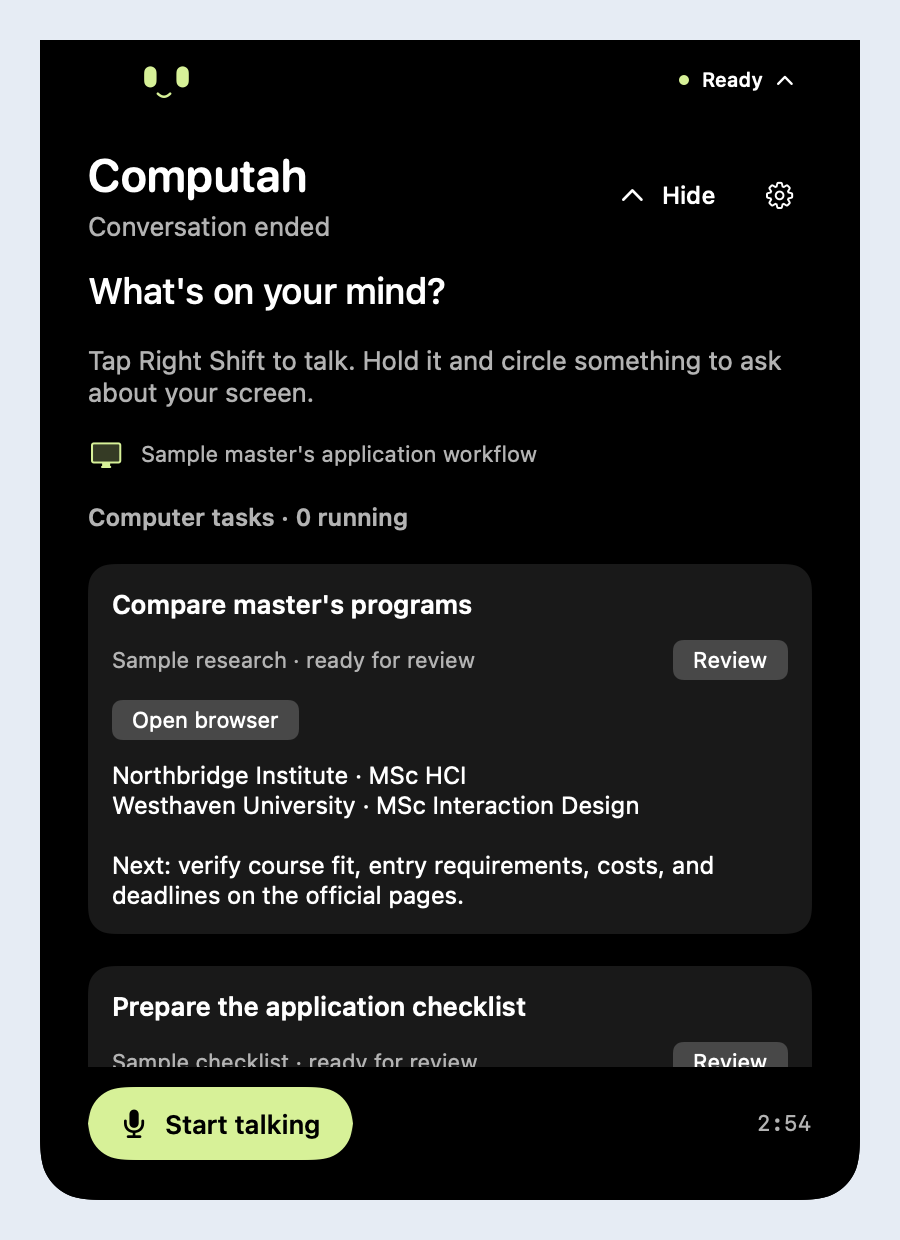
A shortlist. And a way forward.
Ask Computah to compare programs against what matters to you, then prepare a checklist of the requirements to confirm.
“Compare my options and tell me what I need for each application.”
Independent tasks run in separate Codex processes and use native Computer Use in your existing Mac applications.
Native app preview · sample research and checklistOpen full size
Get the details out of your head.
Bring your own notes and experience. Let Computah help organize them and prepare work in your existing applications.
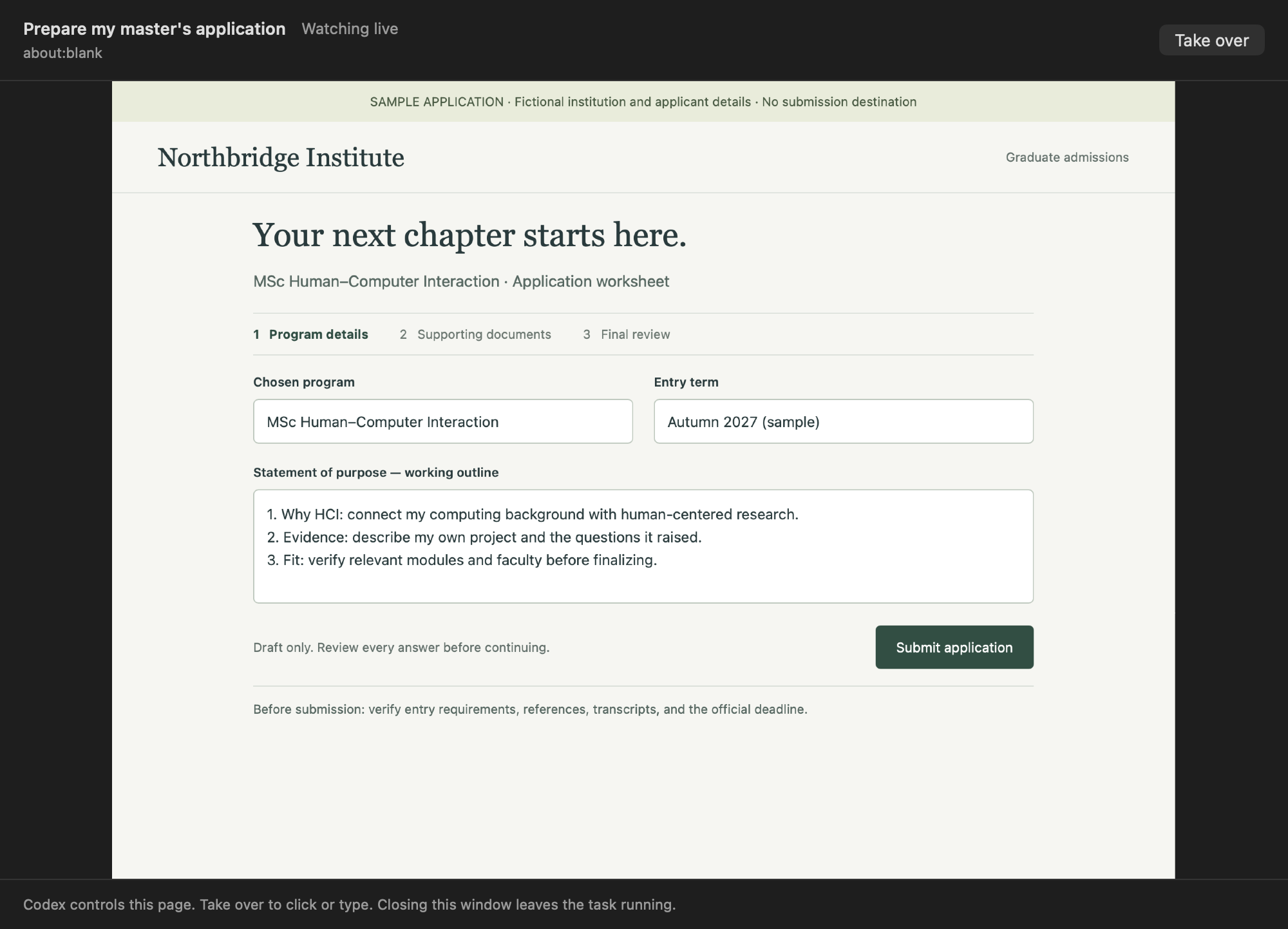
“Use my notes to prepare a statement outline. Leave it for me to review.”
This illustrative screenshot came from the retired local WebKit fixture. Current tasks use native Computer Use.
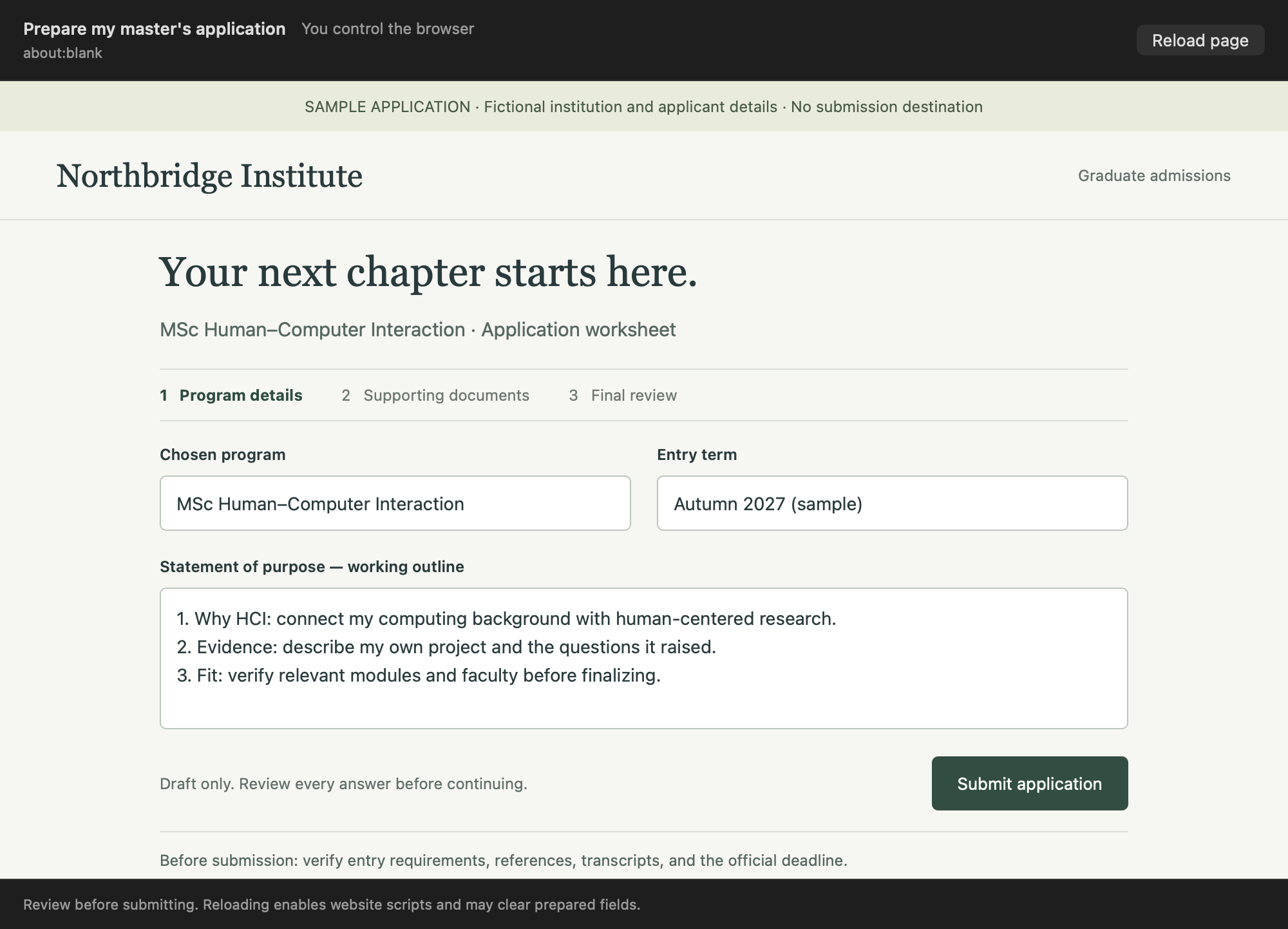
Review prepared work before a consequential action. If the worker needs confirmation, Computah asks you through the voice conversation.
“Let me check the draft before anything is submitted.”
Your answer returns to the same waiting task. Confirmation is a worker instruction in this prototype, not a runtime-enforced block.
Manual takeover in the native app · nothing submittedOpen full size
These are captures of real SwiftUI views and the retired WebKit fixture with illustrative conversations and fictional application data. They do not show the current native Computer Use runtime, an authenticated AI session, or a real university application.
A little company. Through the whole process.
Talk about what you see.
Hold your conversation key and circle something. Ask about the screen without retyping it.
Use your Codex setup.
Computer workers use your signed-in Codex account, plugins, and existing Mac applications.
Pick up the prepared work.
Review a task's result and continue consequential actions manually. Ending a conversation leaves independent tasks running.
Bring your next big plan.
Computah for Mac. An early prototype with a little room in your notch.
Version 0.1.5 · Build 0.1.5 · Apple silicon · macOS 14+
Download & unzip
Open Computah.zip, then move Computah.app to Applications.
Make yourself at home
Open the app and expand the panel at the top of your screen. Bring your own OpenAI API key for voice and screen reading. It is saved in macOS Keychain.
Start with a conversation
Grant the permissions you need and tap Right Shift to talk. Computer tasks also need a signed-in Codex CLI. Full setup guide.
Bring your own OpenAI API key for voice and screen reading. OpenAI bills that API account. Computer tasks use your signed-in Codex account and its plan limits.
Voice is $0.05/minute, with Luna routing and vision charged separately. Illustrative API totals are $0.51 for a short 10-minute demo, $1.52 for a 30-minute session, and $3.04 for a heavier hour, before Codex usage. See rates, assumptions, and sources.
What does the prototype need?
An Apple silicon Mac running macOS 14 or later, internet access, and an OpenAI API key for voice and screen reading. Computer work also needs a compatible Codex CLI signed in to an account with the required native apps and plugins.
Can it book, send, or submit for me?
It helps with research and preparation. Its instructions require your explicit confirmation before payments, bookings, sending, and final submissions. Computah asks through the active voice conversation and returns your answer to that same task. The current YOLO-mode runtime does not enforce the instruction, so inspect task activity carefully. There is no direct email integration; you can ask about an email visible on your screen.
What can it see, and what is shared?
Microphone access enables conversation. Screen Recording allows display interpretation, and Input Monitoring enables the conversation shortcut. During conversation, available screenshots may be sent to OpenAI for routing and interpretation. A selected region can be sent alongside the full display; circling does not restrict sharing to the crop.
Your API key is stored in macOS Keychain and is not sent to Codex workers. Computer Use shares your existing applications, signed-in state, and desktop.
Are the screenshots from a real application?
They use native Computah views with illustrative transcripts, institutions, and application details. The browser images come from a reproducible legacy fixture, not the current native Computer Use runtime. The capture did not run an authenticated model conversation or submit anything.